How do I choose the template and colour?
The template sets the look of the invitation. Templates are organised in collections (for example Renaissance or Travel) and you can see each one live before choosing.
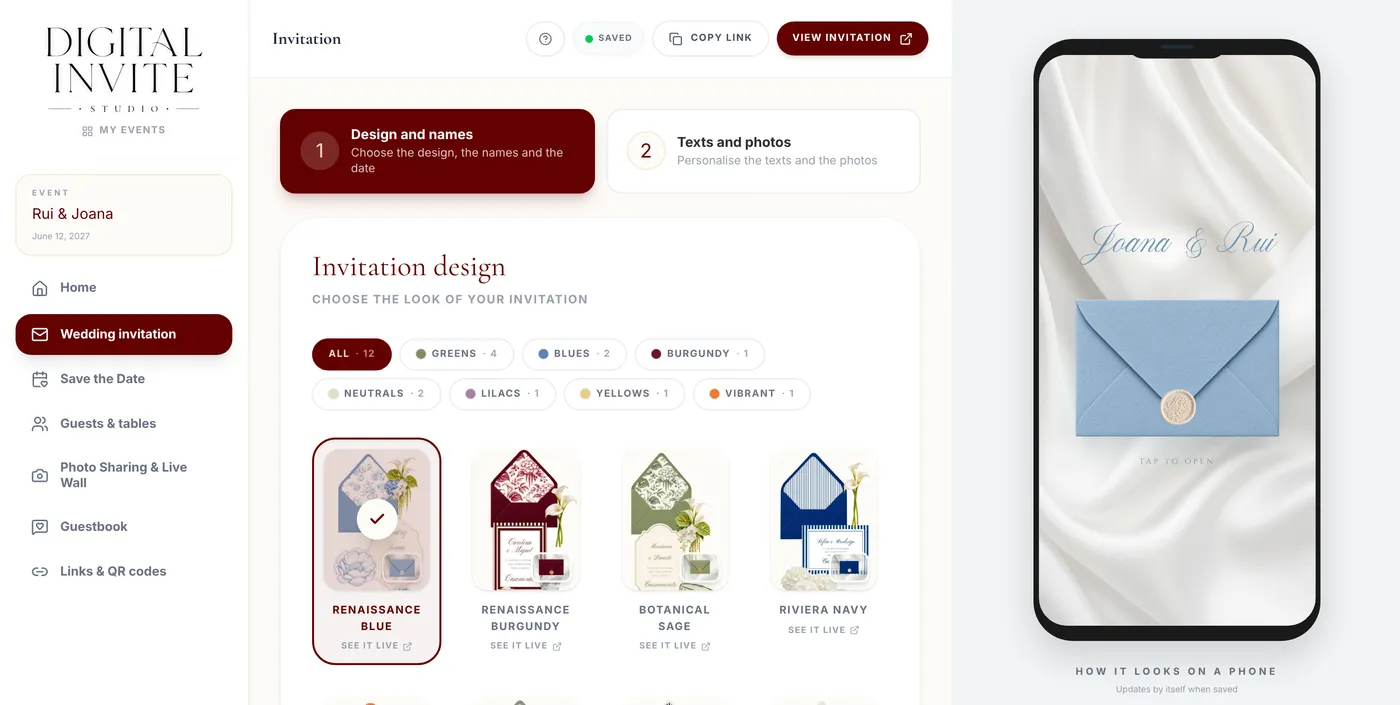
Step by step
- 1
Open Wedding invitation and, in the two numbered steps above the editor, pick Design and names.
- 2
Under Invitation design, each card shows the inside of the invitation (hover over it to see it scroll down) and, in the corner, the closed envelope. Use the buttons above (All, Greens, Blues…) to see only the designs in that colour.
- 3
To see a whole template, with the sample RSVP, click See it live (it opens in a new tab).
- 4
Click the template you like.
- 5
The design is chosen straight away and saves by itself (there is no button to apply). On a computer, the phone next to it shows the result; on a phone, tap View invitation.
- 6
On templates that allow it, adjust the Accent Colour. You can also pick a Custom colour.
Tips
- The texts and photos you've already added aren't lost when you change template.
- All templates are also on the Designs page of the website, with the same colour filters.
- The accent colour only exists on some templates. If the section doesn't appear, the chosen template doesn't have it.
- In Between the names, choose what joins your names on the cover, the envelope and the link preview: Language default (e · & · y) or & (ampersand).
- Want a design of your own? Request a bespoke invitation proposal from Contact.